IoT Enabled Contactless Temperature Sensor:
Microchip's AVR128DA48 and Medium One IoT Cloud
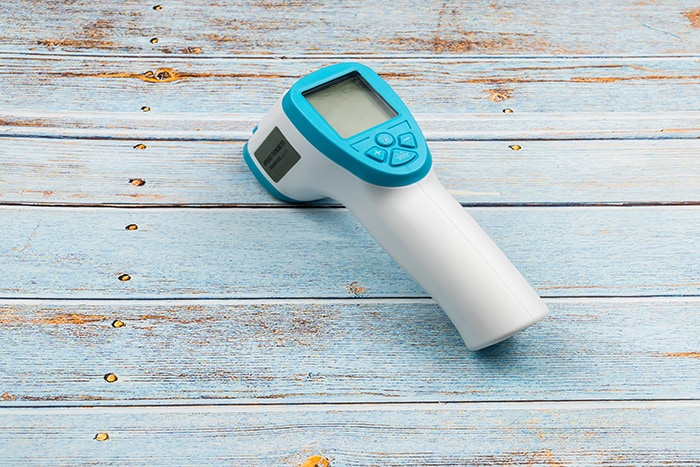
Image Source:
Irwan Bujang/Shutterstock.com
By Greg Toth for Mouser Electronics
Published October 2, 2020
The Microchip AVR128DA48 Curiosity Nano Evaluation Kit enables users to evaluate features of the AVR128DA48 MCU
and develop prototype Internet of Things (IoT) applications with Internet connectivity. The Medium One IoT
Platform is a cloud-based IoT platform designed to help early-stage developers prototype IoT projects or connect
existing hardware to the cloud. In this project, we’ll set up an IoT development environment using the
AVR128DA48 Curiosity Nano to read a TE Connectivity non-contact temperature sensor and send the data to the
Medium One cloud through the internet where it can be processed and viewed using programmable workflows and
configurable widget dashboards.
Project Materials and Resources
The project BOM lists
components used in this project. Additional hardware and software development tools are also identified.
Project Bill of Materials (BOM)
- 579-DM164151:
Microchip AVR128DA48 Curiosity Nano Evaluation Kit
- 579-AC164162:
Microchip Curiosity Nano Base for Click Boards
- 932-MIKROE-3542:
Mikroe 3542 WiFi BLE click
- 932-MIKROE-1507:
Mikroe 1507 PROTO click
- 824-G-TPMO-023:
TE Connectivity G-TPMO-023 TSEV01S01C10 Contactless Thermal Sensor
- 349-M1IOTPROTO:
1-year subscription to the Medium One cloud environment
- 485-0954:
Adafruit USB to TTL Serial Cable (used for configuring the WiFi BLE click)
Hardware
- 11 b/g/n Wi-Fi access point with a DHCP server, Internet connectivity, and without a firewall or proxy that
blocks outgoing traffic to the internet
- Personal computer (PC) running Microsoft Windows®
- USB Type-A to Micro-B cable
- Soldering iron and solder
- Approximately 6 inches of 26- to 30-gauge wire
Accounts and Software
- Web browser for accessing software download sites and Medium One IoT Platform
- Login account for the Medium One IoT Platform
- Microchip Atmel Studio Integrated
Development Environment (IDE)
- Application project files available in GitHub repositories
- Arduino IDE
for configuring the Mikroe 3542 WiFi BLE
click board
- Serial terminal program such as Tera Term on the PC
- Wi-Fi access point connection details, including SSID and password
Project Technology Overview
Microchip AVR128DA48 Curiosity Nano Evaluation Kit
The Microchip AVR128DA48 Curiosity Nano Evaluation Kit (Figure 1) provides a flexible
development board for evaluating the Microchip AVR128DA48 microcontroller features. The onboard AVR128DA48
microcontroller uses the Microchip AVR® CPU with hardware multiplier, running at up to 24MHz. It
has 128KB flash memory, 16KB SRAM, and 512 bytes of electrically erasable programmable read-only memory (EEPROM)
for use by application programs. Microcontroller peripherals include five universal asynchronous
receiver-transmitter (USART), two Serial Peripheral Interface (SPI), two TWI/I2C, analog-to-digital
converter (ADC) with 18 channels, digital-to-analog converter (DAC), multiple analog comparators and
zero-crossing detectors, peripheral touch controller, multiple timers/counters, real-time counter, and 41
general-purpose I/O pins.
The board has one user LED, one user pushbutton switch, an onboard debugger interface for programming and
debugging, two logic analyzer channels (Debug general-purpose input-output), a virtual serial port (CDC), and
can be powered via USB or an external power source. The microcontroller target voltage is adjustable between
1.8V and 5.1V via a voltage regulator controlled by the onboard debugger. Two sets of 28-pin headers provide
easy access to microcontroller signal pins to connect peripherals or for connecting a Curiosity Nano Base for
Click boards™ expansion adapter.
More detailed information about the kit can be found here and here.
Figure 1: Microchip AVR128DA48 Curiosity Nano Evaluation Kit (Source: Mouser
Electronics)
Microchip Curiosity Nano Base for Click Boards™
This adapter (Figure 2) is an expansion board that provides a convenient way to connect sensors
and communication boards to the AVR128DA48 Curiosity Nano. It features three mikroBUS™ sockets along with
multiple power supply options and additional test points.
More detailed information about the adapter can be found here and here.
Figure 2: Microchip Curiosity Nano Base for Click Boards (Source: Mouser
Electronics)
TE Connectivity G-TPMO-023 TSEV01S01C10 Contactless Thermal Sensor
The G-TPMO-023 (Figure 3) is a contactless temperature sensor that uses an infrared sensor
(Thermopile) to measure the temperature of objects at which it's pointed. It has a small size, wide temperature
range, wide operating voltage range, and interfaces digitally through an SPI bus. We'll be using this as the
main sensor for this project.
More detailed information about this sensor can be found here.
Figure 3: G-TPMO-023 Contactless Thermal Sensor (Source: Mouser
Electronics)
Mikroe 1507 PROTO click
We'll use the PROTO click (Figure 4) to connect the C-TPMO-023 contactless thermal sensor to a
mikroBUS connector on the Curiosity Nano Base to be interfaced with the AVR128DA48 microcontroller through an
SPI interface.
Figure 4: Mikro 1507 PROTO click (Source: Mouser Electronics)
Mikroe 3542 WiFi BLE click
The Mikroe 3542 WiFi BLE click (Figure 5) will provide wireless internet connectivity for the
AVR128DA48. It interfaces through a serial UART port and provides a command/response interface controlled by
application code running on the AVR128DA48 microcontroller.
More detailed information about this board can be found here.
Figure 5: Mikro 3542 WiFi BLE click (Source: Mouser Electronics)
Atmel Studio
Firmware programs that run on microcontrollers are typically developed and tested using an Integrated Development
Environment (IDE) running on a personal computer. The IDE provides an editor, compiler, linker, debugger, and a
mechanism for transferring binary program images to the microcontroller.
The AVR128DA48 can be programmed using either the Microchip Atmel Studio or Microchip MPLAB X IDEs. We'll use
Atmel Studio 7, which will connect to the AVR128DA48 Curiosity Nano through a USB cable supporting programming
and debugging. Atmel Studio can be downloaded for free from the Atmel Studio site.
Project Application Source Code Files
For this project, Atmel Studio was used to create a set of project source code files modified and extended to
work with the Medium One IoT Platform. The resulting files have been put in a GitHub repository that you can
download and use. The project files will be imported into Atmel Studio, where they'll be compiled and programmed
onto the AVR128DA48 Curiosity Nano board. The project files consist of a main application program and supporting
I/O and cloud connectivity functions.
Medium One IoT Platform
The Medium One IoT Platform (Figure 6) is designed to help early-stage developers prototype
their IoT project or connect their existing hardware to the cloud. It offers an IoT Data Intelligence platform
enabling customers to build IoT applications with less effort quickly. Programmable workflows allow you to
quickly build processing logic without having to create your own complex software stack. Configurable dashboards
allow you to visualize application data and view real-time data in various formats. Medium One’s iOS and
Android apps will enable you to build simple mobile app dashboards to communicate with your devices through the
IoT platform.
Figure 6: Medium One IoT Platform (Source: Mouser Electronics)
IoT devices can exchange data with Medium One through either a representational state transfer (REST) API or
Message Queuing Telemetry Transport (MQTT). More detailed information about the Medium One IoT Platform can be
found here and on the Medium One site.
The Setup (Hardware)
While setting up the hardware, be sure to remember that electronic components are static-sensitive, so handle
accordingly.
Personal Computer (PC)
Power up the personal computer and allow it to boot up.
Wi-Fi Access Point
Make sure your Wi-Fi access point is running with an active connection to the internet and a DHCP server that
assigns IP addresses. You’ll need to know the access point service set identifier (SSID) and security
credentials to be used later when configuring the Wi-Fi connection.
AVR128DA48 Curiosity Nano Evaluation Kit
Unbox the AVR128DA48 Curiosity Nano board and set it up as described in the User Guide found here.
Carefully insert the included pin header strips into the board holes so that the longer portion of the pins face
down from the bottom of the board. The pin holes have a slightly staggered pattern, so the pin headers will stay
engaged without soldering. You can optionally solder them for a stronger board assembly.
Curiosity Nano Base for Click Boards
Carefully plug the AVR128DA48 Curiosity Nano board into the Curiosity Nano Base board, being sure to get the pin
orientation correct in a way that the USB Micro-B connector is on the left side (same side as the slide switch).
TE G-TPMO-023 Contactless Thermal Sensor and Mikroe 1507 PROTO click
The G-TPMO-023 has six solder pads for connecting wires to its pins. Using 1-inch lengths of 26- to 30-gauge
wire, solder wires from each of those six pin pads to signals on the PROTO click as described in Table 1. Refer
to the TE data sheet available here for pin and pad
numbering. This wiring is specifically for the G-TPMO-023 being used in the mikroBUS 1 slot on the Curiosity
Nano Base.
Table 1: Wiring Between G-TPMO-023 and PROTO click (Source: Mouser Electronics)
TE G-TPMO-023 Pin
|
PROTO click
|
|
1 VDD
|
3V3
|
|
2 GND
|
GND
|
|
3 SCL
|
SCK
|
|
4 MISO
|
SDO
|
|
5 MOSI
|
SDI
|
|
6 SCI
|
CS
|
You can use insulated spacing material and additional wire or string to fasten the G-TPMO-023 board to the PROTO
click board for better mechanical stability. The completed assembly should look something like Figure
7. Insert the completed assembly into the mikroBUS 1 connector on the Curiosity Nano Base board.
Figure 7: TE G-TPMO-023 Mounted on PROTO click (Source: Mouser
Electronics)
Mikroe 3542 WiFi BLE click
Unbox the WiFi BLE click and plug it into the mikroBUS 3 connector on the Curiosity Nano Base board. The
completed assembly should look like Figure 7.
Go to GitHub repository and follow the
instructions for download, installing the Arduino IDE and supporting libraries, opening the application program,
configuring the source code for Mikroe WiFi BLE click, connecting the USB to TTL Serial cable between the
computer and WiFi BLE click, and uploading the program to the WiFi BLE click through the 1x5 pin header on top
of the board. Once the WiFi BLE click is programmed, you can disconnect the USB to TTL Serial cable.
The Setup (Software)
Atmel Studio 7
Go to the Atmel Studio site and follow the instructions to download Atmel Studio and
install it. During installation, enable the AVR 8-bit MCU architecture to install support for the AVR128DA48
microcontroller. Also, enable installation of the Atmel Software Framework and Example Projects.
With the AVR128DA48 Curiosity Nano connected to the computer through the USB cable, launch Atmel Studio. It
should automatically find the board, and the main screen should resemble Figure 8.
Figure 8: Atmel Studio with AVR128DA48 Curiosity Nano Detected (Source:
Mouser Electronics)
Next, we need to install a code library for the AVR128DA48 microcontroller. Navigate to Tools → Device
Pack Manager and click Check for Updates. Browse through the list of packs on the left side and look for
AVR-Dx_DFP version 1.2.56 or higher. Click the corresponding Install button to install the pack into the Atmel
Studio environment. Afterward, close the Device Pack Manager.
Download and Open the Project Application Source Code files
Next, we'll create a new project in Atmel Studio using a template project available in a GitHub repository. Go to
the GitHub repository and find the
AVR128DA48_MediumOne_1.0.0.zip file. Download the file to the computer, but do not unzip it.
In Atmel Studio, select File → Import → Project Template… and in the Import Project Template
dialog, select the AVR128DA48_MediumOne_1.0.0.zip file you just downloaded. Set the Add to folder location to
<Root> and then click OK. Select File → New → Project. In the template list, click on
AVR128DA48_MediumOne. Set the Name field to AVR128DA48_MediumOne and then click OK. After creating the project,
the Solution Explorer panel should look like Figure 9.
Figure 9: After Importing the Project into Atmel Studio (Source: Mouser
Electronics)
We'll come back to the source code files later after setting up Medium One.
Set Up the Medium One IoT Cloud
Go to the Medium One IoT Platform and log in, after which you
should see an initial dashboard resembling Figure 6. If you have trouble logging in, check your
Medium One credentials to make sure you're using the latest URL provided with your subscription. Click Setup
→ Manage Users → Add New User. Set Username to mydevice, create a password of your choosing and
enter it in both password fields, then click Save. In the Manage API Users list, you should see a new user
account having Login ID = mydevice and an auto-generated user MQTT ID like Figure
10.
Figure 10: Newly Created User ID (Source: Mouser Electronics)
Click Setup > MQTT, and you should see a Project MQTT ID and a set of port numbers like
Figure 11.
Figure 11: Project MQTT ID (Source: Mouser Electronics)
Medium One uses MQTT usernames and passwords for authentication. The MQTT username is created by combining the
Project MQTT ID, a forward slash, and the user MQTT ID. For example, if the Project MQTT ID is
“ZHxxxxxxx0Y” and the user MQTT ID is “sTxxxxxxx8w” the corresponding MQTT username
would be “ZHxxxxxxx0Y/sTxxxxxxx8w”.
Next, we’ll create the MQTT password. Navigate to Setup → Manage API Keys → Add New API Key.
Set the description to mydevice, make sure Enabled is check-marked, and click Save. The result should look like
Figure 12.
Figure 12: Newly Created API Key (Source: Mouser Electronics)
The MQTT password is created by combining the API Key, a forward slash, and the mydevice user password.
For example, if the API Key is “PZxxxxxxxxxxxxxxxxxxxxxxxxxxxxxxxxxxxxxxxxxxxMBQ” and the mydevice
user password is “AaaaBbbb3” the corresponding MQTT password would be
“PZxxxxxxxxxxxxxxxxxxxxxxxxxxxxxxxxxxxxxxxxxxxMBQ/AaaaBbbb3”.
The MQTT topic has the following format: “0/Project MQTT ID/User MQTT ID/Device ID”.
The Device ID field can be anything, and we’ll use "mydevice" as the Device ID. For example, if the Project
MQTT ID is “ZHxxxxxxx0Y” and the user MQTT ID is “sTxxxxxxx8w” the corresponding MQTT
topic would be “0/ZHxxxxxxx0Y/sTxxxxxxx8w/mydevice".
The MQTT username, MQTT password, and MQTT topic strings will be added to the project source code in the next
step.
Update Application Source Code Files for Medium One Account Parameters
In Atmel Studio, expand the AVR128DA48_MediumOne project and open file main.c.
Find these string constants and set them to your Wi-Fi SSID and password along with your own Medium One MQTT
username, password, and topic strings as described earlier:
- WIFI_SSID
- WIFI_PASSWORD
- MQTT_USERNAME
- MQTT_PASSWORD
- MQTT_PUB_TOPIC
Save the modified file and build the project. Verify the code compiles without errors. If you see compilation
errors, check the changes you made to the source files and verify that you installed the AVR-Dx_DFP device pack.
Run the Application
Make sure the AVR128DA48 Curiosity Nano board is connected to the PC through the USB connection. Select Debug
→ Start Without Debugging to download the program to the Curiosity Nano and start it executing. Atmel
Studio should have automatically detected the Curiosity Nano and selected its debug interface. If not, check the
selected debugger/programmer found on the AVR128DA48_MediumOne Tools tab.
At this point, the AVR128DA48 Curiosity Nano board should be running and periodically measuring temperature,
which is transmitted to Medium One through MQTT. You can connect a serial terminal program such as Tera Term to
the USB virtual debug console to view status messages generated by the application. Serial parameters are
115200,N,8,1.
How the Application Program Works
The high-level program flow includes:
- Initialize the board and sensor.
- Initialize the Wi-Fi connection through the WiFi BLE click.
- Connect to Medium One MQTT broker.
- Periodically read the temperature and pushbutton and send data messages to the Medium One MQTT broker.
MQTT Payload Format
MQTT messages are formatted as JSON strings according to the Medium One MQTT payload specification. Here’s
an example message:
{"event_data":{"iteration":10,"timestamp":49104,"button":0,"temp":71.26,"amb_temp":69.31}}
Fields:
- iteration = counter that increments by 1 for each event_data message
- timestamp = milliseconds since board started
- button = state of the push button, 1=pressed, 0=released
- temp = object temperature in degrees F
- amb_temp = ambient temperature in degrees F
Try pointing the temperature sensor at different objects to see the data values change. You can also press and
release the push button to see the button value change.
View Data in the Medium One Dashboard
In the Medium One dashboard, navigate to Data Viewer → Data Streams and click raw Events. You should see
raw messages (Figure 13) being received. Click the “+” sign to view message
details.
Figure 13: Raw Message Display (Source: Mouser Electronics)
Click Dashboard on the top left, then click Add Widget → Single User Real Time Events Stream to add an
event stream widget to the dashboard.
In the Select user dropdown, select mydevice. You should now see messages appearing in the Real Time Events
Stream widget (Figure 14). Click the dashboard save icon in the upper right corner to save your
modified dashboard.
Figure 14: Real Time Events Stream Widget Display (Source: Mouser
Electronics)
Add More Widgets
To display more widgets, we need to enable specific data fields contained in the message payload. Navigate to
Config > Data Streams and click on raw Events. The Schema Map should be pre-populated with fields detected in
the incoming messages, however, they are currently disabled. Check the Active box on raw.amb_temp, raw.button,
raw.iteration, raw.temp, and raw.timestamp, then click Save Data Stream. These fields are now available for use
in other dashboard widgets.
Back on the dashboard, click the Single User Last Value Table widget and select the mydevice user within the
widget. Click the widget’s Tag Config icon to the right of the mydevice user selection and check-mark
raw:amb_temp, raw:button, raw:iteration, raw:temp, and raw:timestamp, then click Save. The Last Value Table
should now populate with the most recent received values for each field (Figure 15). Click the
dashboard save icon toward the upper right corner to save the updated dashboard.
Figure 15: Last Value Table Widget Display (Source Mouser Electronics)
Now let’s add dashboard widgets for the temperatures, pushbutton, and iteration counter. Click Single User
Real Time Gauge and select the mydevice user. Click the widget’s Tag Config icon and check-mark
raw:amb_temp, raw:button, raw:iteration and raw:temp, then click Save. The updated dashboard should look like
Figure 16. Click the dashboard save icon to save the updated dashboard. Try heating or cooling
the temperature sensor to see the gauge values change.
Figure 16: Real Time Gauge Widgets Added to Dashboard (Source: Mouser
Electronics)
At this point, your board is running continuously, periodically reading the temperature sensor and transmitting
data measurements to the Medium One cloud through the internet. Remember to power off the board when
you’re done. Otherwise, it will continue to send messages to Medium One and consume daily message
allotments.
Figure 17 shows the completed project connected to a development computer through a USB hub. The
temperature sensor faces up and can be pointed at different objects to take temperature measurements.
Figure 17: Completed Project (Source: Mouser Electronics)
Troubleshooting Tips
- Make sure you've verified basic operation of the Curiosity Nano as described in the quick start guide.
- Make sure Atmel Studio 7 is installed and configured according to the instructions.
- Make sure the temperature sensor is wired up properly and is plugged into the correct mikroBUS socket
number.
- Make sure the WiFi BLE click is plugged into the correct mikroBUS socket number, and you've gone through all
the programming steps using the Arduino IDE.
- Make sure you've set the correct Medium One parameters in your source code.
- Verify the Medium One MQTT Secure TCP Port number shown in the Medium One web console and update MQTT_PORT
in main.c if necessary.
- Examine the informational messages generated by the application code on the debug serial port.
- Single-step through the code using the Atmel Studio 7 debugger.
Conclusion and Where to Go Next
This project created an end-to-end sensor-to-cloud application that sends real-time sensor data to the Medium One
IoT Platform through the Internet. It can be modified and extended in several ways, and here are a few examples:
- Dive deeper into the application code and board hardware by reading the Atmel user guides and studying the
source code.
- Explore the Microchip Atmel Start libraries and example programs.
- Add more widgets to the Medium One dashboard, such as a real-time line chart of temperature readings.
- Connect new sensors and include the data in messages sent to Medium One.
- Explore the use of alternate power sources for the Curiosity Nano and Curiosity Nano Base.
- Learn about the Medium One Workflow Studio, which lets you create data processing workflows to transform
your sensor data.
- Experiment with the Medium One mobile apps.
Author Bio
 Greg is an architect,
engineer and consultant with more than 30 years experience in sensors, embedded systems, IoT,
telecommunications, enterprise systems, cloud computing, data analytics, and hardware/software/firmware
development. He has a BS in Electrical Engineering from the Univ. of Notre Dame and a MS in Computer Engineering
from the Univ. of Southern California.
Greg is an architect,
engineer and consultant with more than 30 years experience in sensors, embedded systems, IoT,
telecommunications, enterprise systems, cloud computing, data analytics, and hardware/software/firmware
development. He has a BS in Electrical Engineering from the Univ. of Notre Dame and a MS in Computer Engineering
from the Univ. of Southern California.